Tampilkan postingan dengan label Download. Tampilkan semua postingan

Jumat, 04 November 2011

Download Shutterstock For iPad App - The Best Way To Discover 16 Million High Resolution Images On The iPad [Review]

Are you addicted to amazing images? Are you want to get millions of image on your hand? Are you searching the best way to discover images on the iPad? If your answer is yes and you have an iPad then guess you are in the right place. Your dream is being filled up by Shtutterstock. Shutterstock brought its 16 million high resolution amazing images to iPad via Shutterstock for iPad app. Shutterstock brought its whole image catalog to the iPad via this app that focuses on providing a different experience for browsing images, wireframes, vectors and so on.

Shutterstock For iPad App

By Shutterstock for iPad you are able to view high resolution previews, have curated content categories and even organize and share different lightbox collections via email, Facebook and Twitter. Shutterstock for iPad is the most beautiful app for stock photos and illustrations.
Explore, Discover, Create, Get Shutterstock for iPad
    * Enjoy a breakthrough image browsing experience.
    * Search and view millions of Shutterstock images.
    * Easily create and share lightboxes on the go.

Shutterstock For iPad App

Shutterstock presents an elegant way to search, browse and organize millions of beautiful stock photos, illustrations, and vectors from the world’s largest subscription-based image library.

Features:

• Browse smoothly through the Shutterstock image library with the swipe of a finger.
• Search by keyword to find images of any subject.
• See unique content curated by Shutterstock editors.
• View high-res preview images — the most vivid of any imaging app.
• Create, organize, and share lightboxes of images.
• Download images later from your computer with your paid Shutterstock account (downloading from the app is not supported).

Shutterstock for iPad’s unique Mosaic view instantly interlocks images of different sizes and aspect ratios. Users will see a breathtaking, seamless grid of pictures, making it easy and enjoyable to quickly flip through thousands of images.

A free Shutterstock browse account is required to use lightboxes — sign up within the app or at www.shutterstock.com.

Free Download This App


FAQ On This App

Do I need a Shutterstock account?
You can use Shutterstock for iPad without a Shutterstock account, but if you have an account, you will be able to work with lightboxes. Use the same login and password you use for www.shutterstock.com. If you don’t have an account, you can create a free browse account within the app.

What hardware do I need?
Shutterstock for iPad works with iPad and iPad 2. We do not support other devices at this time.

Can I download files onto my iPad?
Shutterstock for iPad does not currently support image downloads. Visit Shutterstock from your computer to access your saved lightboxes and download files.

How do I use lightboxes?
Lightboxes are collections of images you create. When you’re logged in to Shutterstock for iPad, you can create, view, and edit lightboxes associated with your Shutterstock account. You can also share them with anyone.

Does the app support footage?
No. You can search and view the Shutterstock Images collection, but the app does not currently support Shutterstock Footage.

How much does the app cost?Shutterstock for iPad is free. Download the app here.

Download Shutterstock for iPad By Shutterstock Images LLC


Shutterstock Launches iPad App
Shutterstock for iPad gets released, showcasing 16mm images
iPad's photo application
PadGadget for Shutterstock
Browse shutterstock images with iPad
Apple iPad App for sutterstock image browsing
iPad image browser app download
free image browseing app for ipad
ipad and shutterstock app

Minggu, 23 Oktober 2011

Installing MeeGo on your Netbook Linux and Mac Instruction [MeeGo Guide]


Linux developers
Follow the steps on this page for downloads and installing MeeGo on your Netbook and you'll be ready to go mobile!
Windows Instructions Use a Windows app to install the MeeGo OS on your currently Windows OS computer.

Overview

Steps for loading the MeeGo live image on your netbook, nettop, or PC:
  1. Download the latest live image.
  2. Byte-copy the image to a USB drive.
  3. Boot the image on your netbook, nettop, or PC.

System Requirements

  • CPU: Intel Atom or Intel Core 2 CPU (support for SSSE3)
    Note: MeeGo will not work on non-SSSE3 CPUs
  • Platforms with the GMA-500, Nvidia, or ATI graphics chipsets are not supported
  • A tested netbook or nettop platform

About Live Images

The MeeGo live image is designed to be used with a USB drive. A netbook or PC can be booted from the USB drive without modifying its hard drive or configuration. This lets you test drive an image before installing it. When you are done, just remove the USB drive and reboot. If you like what you see, you can then install MeeGo from the same live image.
1 Download the Live Image
The live image is available from the netbook downloads page. Save the image to a known location, so you can access it in step 2.
2 Byte-copy the image to a USB drive
You will need a USB drive with at least the capacity of the downloaded image. Note: A byte-exact copy of the image must be placed on the USB drive. It is not sufficient to simply copy the image file to the drive. Be aware that the contents of the USB drive will be completely erased.
Linux Instructions
Be sure the USB drive is unmounted before proceeding. Some Linux distributions auto mount the USB drive when it is inserted, which can cause corruption when writing.
# umount <usb-drive>
Use either of these two methods:
  • Image Writer (recommended, requires Python >=2.4)
    Image Writer is a small python executable script that detects your USB drive and writes the image to it. The advantage of using image writer is that it will not inadvertently overwrite your system hard drive. Download Image Writer
    # cd <directory with downloaded image-writer file>
    # chmod a+x ./image-writer
    # ./image-writer <image file>
  • Use 'dd' from the command-line
    Caution: 'dd' will overwrite any destination including your system hard disk. Make sure you know the correct value of <usb drive> before proceeding.
    # dd bs=4096 if=<image file> of=<usb drive>
Proceed to Step 3: Boot the image
Windows Instructions
There is a simple way to put the MeeGo image on a USB drive.
  1. Download the Win32DiskImager.exe program:
    https://launchpad.net/win32-image-writer/+download (zip file)
  2. Unzip the file and extract the contents to a known directory
  3. Run W32DiskImager.exe
  4. Select the MeeGo image file (.img)
  5. Select the drive letter which corresponds to the USB key
  6. Click the "Write" button to byte-copy the image to the USB drive.
Proceed to Step 3: Boot the image
Mac OS X Instructions
Be sure the USB drive is unmounted before proceeding. OS X auto mounts the USB drive when it is inserted, which can cause corruption when writing. You can press the eject icon in Finder or drag the USB icon to the trash. Use this method (thanks to Many Ayromlou for the instructions):
  1. Open a Terminal (Applications -> Utilities -> Terminal)
  2. Run
    diskutil list
    to get the current list of devices
  3. Insert your flash media
  4. Run
    diskutil list
    again and determine the device node assigned to your flash media (for example /dev/disk2)
  5. Run
    diskutil unmountDisk /dev/diskN
    (replace N with the disk number from the last command; in the previous example, N would be 2)
  6. Run
    sudo dd if=/path/to/downloaded.img of=/dev/diskN bs=1m
    (replace /path/to/downloaded.img with the place you downloaded the image. You'll need your password for this.
  7. Run
    diskutil eject /dev/diskN
    (where N is the number we found above) and remove your flash media when the command completes
  8. You're done! Proceed to Step 3: Boot the image
3 Boot the image on your netbook, nettop, or PC
Insert the USB drive into your netbook, nettop, or PC and reboot. Make sure that the boot order tries the USB drive first.

Installing the MeeGo OS onto Your Computer, Using a Windows App [ MeeGo Guide]


Windows Instructions


If your computer does not have the MeeGo OS installed and you want to replace an existing Windows operating system with the MeeGo OS, follow the instructions on this page.
Notes:
  • There may be image writer tools for other operating systems available, as well.
  • If you are a Linux developer, you may prefer to use these instructions for Linux.

Getting Ready

System Requirements
  • CPU: Intel Atom or Intel Core 2 CPU (support for SSSE3)
    Note: MeeGo will not work on non-SSSE3 CPUs
  • Platforms with the GMA-500, Nvidia, or ATI Graphics chipset are not supported.
  • Tested netbook and nettop platforms
Follow the Processes on This Page Completely and in Order
To make the overall procedure of downloading and installing the image easier to follow, the procedure is broken down into smaller processes, but you must perform all of the processes below completely and in the order they are presented to replace your computer’s current OS with the MeeGo OS.
Notes:
  • When you install MeeGo OS, all programs and any other content that exists on the computer you are installing onto will be permanently deleted.
  • Before you installing the MeeGo OS on your computer, make sure you test it. Testing instructions are provided below in process D, Testing the MeeGo OS Image on Your Computer Before You Install It.
    Note: Testing does not work on some computers, such as Sony netbooks.
  • The computer you are installing the MeeGo OS onto must have a USB port.
  • You will need to use a computer to download the image file and save it to a USB drive, even if the device you will be installing the MeeGo OS on is not a computer.

A. Download the Image Writer for Windows Tool

Image Writer for Windows is a Windows program that saves and restores images from removable drives, such as a USB drive, which is what you’ll need to install the MeeGo OS. You can use Image Writer for Windows to write a boot image to a USB drive, which you’ll be able to use to install the MeeGo OS onto your computer or device.
  1. Open the website for the Image Writer tool for Windows.
    (Ubuntu version)
  2. On the right side of the Image Writer for Windows website is a Downloads area. On the right of the top green button, that reads “win32diskim...3-win32.zip”, click the down arrow.
    Win32 Disk Imager download screen
  3. If you have WinZip installed, select open with WinZip.
    Note: If you do not have WinZip installed, you will need to install the WinZip program first and then return to step 1 of these instructions.
  4. In Windows Explorer, create a folder on your computer where you will extract the WinZip file.
  5. Once the WinZip file opens on your computer, select all of the files in the WinZip folder, click Extract, and then browse to select the folder you created to extract the files into.
  6. If that folder doesn’t open automatically, navigate to it in Windows Explorer and double-click on the Win32DiskImager.exe file. The Win32 Disk Imager program opens.
    Win32 Disk Imager screen

B. Download the MeeGo Image File for Your Device

  1. In a browser window, open the MeeGo Downloads page.
  2. Click the Download link to the left of the device type (such as netbook) you want to download the MeeGo OS for.
  3. In the screen that appears, select Save File, and click OK.
  4. Once the download is complete, right-click the file’s name in the Downloads screen and select Open Containing Folder.
  5. In the Download Complete screen, click Close.

C. Save the MeeGo Image File onto a USB Drive

  1. In the Win32 Disk Imager window, click the folder button to the right of the Image File Field.
    Win32 Disk Imager screen, folder button selected
  2. In the Select a disk image screen browse to select the image file you just saved (browse to the same folder that opened when you clicked Open Containing Folder above in step 4 of process B, just above this process) and click Save.
  3. The name of the file you selected appears in the Image File filed of the Win32 Disk Imager window.
    Win32 Disk Imager screen with Image File name
    Note: The name of the image file you saved may be different from the example Image File name in the screen above.
  4. Insert an empty USB drive into a USB port on your computer. The Device field should fill in automatically to reflect the USB drive’s location.
    Note: If the Device field does not fill in automatically, click the refresh button to the right of the Device field and you will see the available drives listed. Select the correct one for your USB drive.
    Win32 Disk Imager screen, refresh button selected
  5. Click the Write button to save the selected image file onto the USB drive.
  6. In the Confirm overwrite screen, click Yes.
    Confirm overwrite screen, Yes button selected
  7. The image file will begin saving to the USB drive. This may take several minutes.
    Win32 Disk Imager screen, file saving
  8. Once the progress bar reaches 100%, file is saved, and then the progress bar disappears completely. Now you can remove the USB drive from your computer.
    Win32 Disk Imager screen, progress bar past 100%

D. Testing the MeeGo OS Image on Your Computer Before You Install It

Before you install the MeeGo OS on your computer, deleting all existing content on that computer, you should test to make sure MeeGo will work on that computer.
Note: Testing does not work on some computers, such as Sony netbooks.
  1. Turn off the computer or device on which you are going to install the MeeGo OS.
  2. Insert the USB drive into a USB port on that computer or device.
  3. Turn the computer or device on.
  4. As soon as you turn on that computer or device, rapidly and repeatedly press the key on your computer's keyboard that allows you to access the “Boot Menu”, a screen that lets you select, using your up and down arrow keys on the computer’s keyboard, which drive you want to boot your computer from.
    Note: The key that allows you to access the boot menu varies by computer. For some it's the F12 key, for others it's Esc, 0, F9, or possibly something else. If none of those work, refer to your computer's documentation.
  5. Use your down arrow to select USB and press Enter on your keyboard.
  6. In the Welcome to MeeGo! screen, use the down arrow to select Boot MeeGo and press Enter on your keyboard.
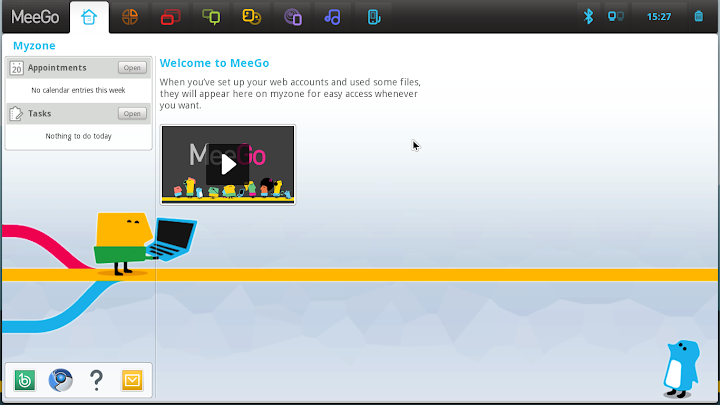
  7. If the MeeGo Myzone screen appears, MeeGo will work on your system.
    Note: If you remove the USB drive from your computer, MeeGo will not continue working properly until you reinsert the USB drive.

E. Installing the MeeGo OS Image onto Your Computer

  1. Turn off the computer or device on which you are going to install the MeeGo OS.
  2. Insert the USB drive into a USB port on that computer or device.
  3. Turn the computer or device on.
  4. As soon as you turn on that computer or device, rapidly and repeatedly press the key on your computer's keyboard that allows you to access the “Boot Menu”, a screen that lets you select, using your up and down arrow keys on the computer’s keyboard, which drive you want to boot your computer from.
    Note: The key that allows you to access the boot menu varies by computer. For some it's the F12 key, for others it's Esc, 0, F9, or possibly something else. If none of those work, refer to your computer's documentation.
  5. Use your down arrow to select USB and press Enter on your keyboard.
  6. In the Welcome to MeeGo! screen, use the down arrow to select Installation Only and press Enter on your keyboard.
  7. In the first screen of the installation wizard, click Next.
  8. In the second screen, select the language you want to set as your computer’s language default, then click Next.
  9. In the following screen, in the drop-down field at the top of the screen, select Remove all partitions on selected drives and create default layout. Then click Next.
  10. In the Writing storage configuration to disk screen, click Write changes to disk. Wait for several minutes while the MeeGo OS installs.
  11. In the final screen of the installation wizard, which reads “Congratulations, the installation is complete.” at the top of the screen, click the Close button.
    Note: Do NOT remove the USB drive until the computer’s screen goes black, then remove it immediately.

F. Completing Your MeeGo OS Setup

  1. The computer should restart automatically. If it doesn’t, wait a few moments and then press the power button.
  2. After a minute or two, the MeeGo background screen will appear, then disappear and there will be a black screen for a few moments before the MeeGo Setup screen appears. Click Forward.
  3. In the Keyboard screen, select the language you want to use for the computer’s keyboard. Click Forward.
  4. In the Time Zone screen, select a city that is within your time zone. Click Forward.
  5. In the Date and Time screen, set the correct date, hour, minute, and second. Click Forward.
  6. In the Backtrace Collection screen, select Yes if you wish to automatically report computer crashes to the MeeGo reporting database, and No if you do not wish to report your computer’s crashes. Click Forward.
  7. Enter a username, your full name, and then a password you wish to use, which you repeat in the Confirm Password field. Click Finish.
  8. Wait a few minutes and MeeGo will launch and be ready for you to use.
    Note: For help using MeeGo, take a look at the MeeGo help file.

Sabtu, 24 September 2011

Microsoft Windows 8 (32-bit and 64-bit) OS Free Download For Developer Preview

Microsoft Windows 8 Operating System has been released for free in both 32-bit and 64-bit version for developer preview. You could try it for free to ensure about the features of this new Windows operating system. In this article you will get the direct download link of new Windows 8. Microsoft will release download link for the developer preview version announced it by Microsoft after the BUILD conference and giving away of free Windows 8. Now this link is open to all for free. You have not to give the activation key......

Microsoft windows 8


Must Read: Microsoft Windows 7 Home Premium

Video:Windows 8 Concept


Windows 8 Developer Preview


Windows Developer Preview with developer tools English, 64-bit (x64)

DOWNLOAD (4.8 GB)
Sha 1 hash – 6FE9352FB59F6D0789AF35D1001BD4E4E81E42AF
All of the following come on a disk image file (.iso). See below for installation instructions.
  • 64-bit Windows Developer Preview
  • Windows SDK for Metro style apps
  • Microsoft Visual Studio 11 Express for Windows Developer Preview
  • Microsoft Expression Blend 5 Developer Preview
  • 28 Metro style apps including the BUILD Conference app

Windows Developer Preview English, 64-bit (x64)

DOWNLOAD (3.6 GB)
Sha 1 hash – 79DBF235FD49F5C1C8F8C04E24BDE6E1D04DA1E9
Includes a disk image file (.iso) to install the Windows Developer Preview and Metro style apps on a 64-bit PC.

Windows Developer Preview English, 32-bit (x86)

DOWNLOAD (2.8 GB)
Sha 1 hash – 4E0698BBABE01ED27582C9FC16AD21C4422913CC
Includes a disk image file (.iso) to install the Windows Developer Preview and Metro style apps on a 32-bit PC.

System Requirements

Windows Developer Preview works great on the same hardware that powers Windows Vista and Windows 7:
  • 1 gigahertz (GHz) or faster 32-bit (x86) or 64-bit (x64) processor
  • 1 gigabyte (GB) RAM (32-bit) or 2 GB RAM (64-bit)
  • 16 GB available hard disk space (32-bit) or 20 GB (64-bit)
  • DirectX 9 graphics device with WDDM 1.0 or higher driver
  • Taking advantage of touch input requires a screen that supports multi-touch

How to install the Windows Developer Preview from an ISO image

The Windows Developer Preview is delivered as an .iso image that must be converted into installation media stored on a DVD or a USB flash drive. On Windows 7, the easiest way to convert this file is to use Windows Disc Image Burner. On Windows XP and Windows Vista, a third-party program is required to convert an .iso file into installable media—and DVD burning software often includes this capability.
Note: The .iso file that contains the developer tools requires a large capacity DVD called a DVD-9, as well as a DVD burner that can handle dual-layer (DL) DVDs. Most modern burners should be able to handle this format.

Before you Go ahead installing it you should know few stuff

1. This preview version will work fine for 1 year, it seems.
2. You will need a large 8.7GB capacity DVD(called DVD9) for burning Windows Developer Preview with developer tools English, 64-bit
3. This version only have Internet Explorer 10, Metro-style UI, upgraded Task manager, but missing most other program. But it is expected.
4. This version comes with all 25+ desktop apps that have been shown in BUILT conference.
So, do you want to give it a try? Share your experience with us.

Visitors Query:

windows 8 developer cd/dvd device driver
windows 8 developer preview download
windows 8 iphone driver help
metro apps missing from 32-bit
preview-for-free.xhtml
Microsoft Windows 8 Developer Preview
iphone 4 driver windows 8
pogramme herunterladen win8
WINDOWS DEVELOPER PREVIEW ACTIVATION
windows 8 developer dvd device driver missing
How to unlock features on windows developer preview
Windows 8 x64 cd/dvd missing
install Windows 8 Developer
windows 8 developer preview x64 missing drivers
windows8 developer treiber cd
a required driver is missing windows 8 developer preview connect
Microsoft Windows Developer Preview x86-x64 Full 3 in 1 DVD-9
dl windows 8 developer
windows 8 developer preview "device driver"
windows 8 developer missing driver
microsoft windows 8 preview
windows 8 developer preview build
windows phone support tool 4.8 installer
Windows DeveloperPreview-64bit-English.iso
windows developers preview
free download Activation windows8 32 bit
windows 8 developers builds
windows 8 tablet pc
windows8 tablet
Windows 8 Developer+missing driver
win8 Developer
unlock features windows developer preview
Windows 8 DeveloperPreview-32bit-English
Windows Developer Preview ask activation
apps missing in 32 bit windows 8
windows 8 driver missing
windows 8 developer preview device driver missing error
Windows 8 Developer Preview Builds
unlock games windows 8 preview
windows8 developer preview dvd driver missing
windows 8 free download
free download activation for windows developer preview
win 8 developer preview
baixar windows 8 64 bits
ISO images of the Windows 8 developer preview
Windows 8 Developer Preview
windows 8 developer preview missing driver help
windows 8 developer preview DVD ROM missing
ie 10 metro style 32 bit
Includes a disk image file (.iso) to install the Windows Developer Preview and Metro style apps on a 64-bit PC
how to get 28 metro style apps for x86
windows 8 developer preview install cd device driver missing
Is IE in Windows 8 Preview x64 64 bit
how to install windows developer preview tools
windows 7 usb download tool 8 developer preview not work
windows 8 developer preview 64 burning to dvd
DOWN LOAD AND INSTALL WINDOWS 8 FOR FREE
themes for windows xp free download full version windows 8

Sabtu, 21 Mei 2011

MeeGo | Download all New and Updated Version of MeeGo OS , MeeGo Core, MeeGo SDK, MeeGo Netbook

MeeGo is an open source, Linux project which brings together the Moblin project, headed up by Intel, and Maemo, by Nokia, into a single open source activity. MeeGo integrates the experience and skills of two significant development ecosystems, versed in communications and computing technologies. The MeeGo project believes these two pillars form the technical foundations for next generation platforms and usages in the mobile and device platforms space.
MeeGo Download


MeeGo includes:

  • Performance optimizations and features which enable rich computational and graphically oriented applications and connected services development
  • No-compromise internet standards support delivering the best web experiences
  • Easy to use, flexible and powerful UI/app development environment based on Qt
  • Open source project organization managed by the Linux Foundation
  • State of the Art Linux stack optimized for the size and capabilities of small footprint platforms and mobile devices, but delivering broad linux software application compatibility
MeeGo currently targets platforms such as netbooks/entry-level desktops, handheld computing and communications devices, in-vehicle infotainment devices, connected TVs, and media phones. All of these platforms have common user requirements in communications, application, and internet services in a portable or small form factor. The MeeGo project will continue to expand platform support as new features are incorporated and new form factors emerge in the market.


DOWNLOAD MeeGo

MeeGo v1.2 Core Software Platform

MeeGo Core Software Platform |

19 May 201
The MeeGo 1.2 Core OS provides a complete set of enabling technologies for mobile computing

The MeeGo 1.2 Core release provides developers with the MeeGo kernel, device drivers, middleware subsystems, and common API components, necessary to develop future MeeGo compliant solutions. The Core images do not contain reference user experience frameworks or applications. Those are part of MeeGo UX images, which provide adaptations of MeeGo for the characteristic needs of various device category interaction models and use case needs.
Download

MeeGo v1.2 for Netbooks

Core Software Platform & Netbook User Experience Project Release |

19 May 2011
Download

MeeGo v1.2 for In-Vehicle Infotainment (IVI)

MeeGo v1.2 for In-Vehicle Infotainment (IVI) |

19 May 2011
Download

MeeGo v1.2 for Netbooks (Google Chrome Browser)

This release requires accepting the Google Chrome end user license agreement (EULA). |

19 May 2011
Download

MeeGo v1.2 SDK

Download the MeeGo 1.2 SDK to get the latest tools for creating and debugging MeeGo applications for tablets, netbooks, and handheld devices.

The MeeGo SDK provides the Qt Creator-based development environment with integrated help, along with Qt Simulator, and a full virtual machine (QEMU), to enable the developer to create applications ready for submission to an appstore, with or without target hardware.

Supported hosts are Ubuntu 10.04, 10.10; Fedora 13, 14; Windows XP and Windows 7.

Full Release Notes are available for your reference and include a summary of what's new in version 1.2, supported platforms, known issues and much more.


Release updates

The latest MeeGo release updates

MeeGo Projects

The MeeGo distribution is made up of many different projects , including:
  • MeeGo QEMU: The version of Qemu used in Meego SDK
  • MeeGo Multimedia: Multimedia repositories
  • Tracker: All-in-one indexer, search tool and metadata database
  • MeeGo Bluetooth: Bluetooth components including BlueZ, obexd, etc.
  • MeeGo Cellular: Components providing cellular support in MeeGo
  • Meego Security Framework: Security Framework repositories
  • MeeGo Developer Tools: Developer Tools and Utilities
  • MeeGo Handset UX: MeeGo Handset User Experience
  • MeeGo Netbook UX: MeeGo Netbook User Experience
  • MeeGo OS Base: MeeGo Base OS Software
  • MeeGo IVI UX MeeGo: In-Vehicle Infotainment (IVI) User Experience
  • MeeGo Applications: Applications for various User Experiences
  • MeeGo UX: MeeGo user experience repositories across all device categories
  • MeeGo Middleware: Refer to the MeeGo Architecture for more details
You can find more information about the MeeGo projects on Gitorious . However, not all MeeGo content will be hosted there because a lot of MeeGo projects are upstream including the Linux kernel (kernel.org), freedesktop, and others. You can get even more information about how all of these projects and the upstream projects work together by visiting the MeeGo architecture page.

MeeGo 1.2 Release

Today we are announcing the project release of MeeGo 1.2. This release provides a solid baseline for device vendors and developers to start creating software for various device categories on Intel Atom* and ARMv7 architectures.

The MeeGo 1.2 Core OS provides a complete set of enabling technologies for mobile computing.

Some highlights of the MeeGo Core stack include:
  • MeeGo Reference Kernels supporting a variety of Intel Atom and ARMv7 platforms.
  • QML Application Framework and extended Qt-Mobility APIs, including additional location, system, connectivity, and sensor/haptic capabilities for rapid, rich, application development.
  • Enhanced Telephony and Connectivity capabilities, including:
    • GSM, GPRS, and HSPA+ network support
    • SIM Application Toolkit
    • Expanded Bluetooth profiles
    • Expanded VPN and wireless authentication methods
    • USB, WiFi, and BT-PAN data tethering capability
    • Enhance multimedia support, including RTSP streaming with progressive download

You May Like This:

MeeGo 1.2 Operating System for netbooks and tablets | Download MeeGo 1.2 Core


MeeGo v1.0 Core Software Platform & Netbook

MeeGo 1.2 Operating System for netbooks and tablets | Download MeeGo 1.2 Core

Download MeeGo 1.2 Core OS 

Download MeeGo 1.1.2 SDK Update

Download MeeGo SDK for Linux

Download MeeGo SDK for Windows

MeeGo 1.2 has been made for netbooks and tablets, leaves handsets hanging on the telephone and new audio and networking stacks have also been added for A2DP streaming and HSPA+ support.By this release developers to start creating software for various device categories on Intel Atom and ARMv7 architectures and this means that over the next few months we should see MeeGo being more prominent in the smartphone market, provided developers and hardware manufacturers decide to pick up the OS and run with it…………..
Meego os Downloads


The MeeGo project developers have announced the release of MeeGo 1.2, described as a solid baseline for device vendors and developers to start creating software for various device categories and promising mobile operating system which can run on a number of devices including smartphones, MIDs, Tablets, Netbooks and In-Vehicle systems. This release provides a solid baseline for device vendors and developers to start creating software for various device categories on Intel Atom and ARMv7 architectures.The MeeGo 1.2 Core OS provides a complete set of enabling technologies for mobile computing.
Some highlights of the MeeGo Core stack include:
  • MeeGo Reference Kernels supporting a variety of Intel Atom and ARMv7 platforms.
  • QML Application Framework and extended Qt-Mobility APIs, including additional location, system, connectivity, and sensor/haptic capabilities for rapid, rich, application development.
  • Enhanced Telephony and Connectivity capabilities, including:
    • GSM, GPRS, and HSPA+ network support
    • SIM Application Toolkit
    • Expanded Bluetooth profiles
    • Expanded VPN and wireless authentication methods
    • USB, WiFi, and BT-PAN data tethering capability
    • Enhance multimedia support, including RTSP streaming with progressive download

This release also includes the following:

  • Netbook UX 1.2 complete set of core applications for netbooks.
  • In-Vehicle Infotainment (IVI) UX 1.2 includes a sample IVI Homescreen and speech recognition enabled Application Launcher built with QML, as well as a collection of commonly used applications.
  • Tablet Developer Preview
  • MeeGo SDK 1.2 for MeeGo Core OS and supported UXs.

The MeeGo Netbook User Experience includes:

  • Visually rich netbook user experience, built on the latest open source technologies.
  • Touch support integrated on netbooks/nettops.
  • Instant access to your calendar, tasks, appointments, recently used files, and real-time social networking updates through the home screen.
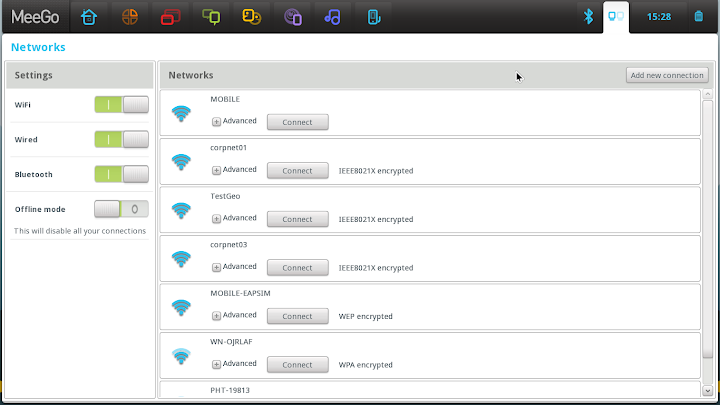
  • Aggregation of your social networking content. This allows you to see your social networking activities on one screen, easily interact with your friends, and update your status and site information.
  • For a fast and rich internet experience: MeeGo Netbook user experience integrates Google Chrome or, if you prefer a fully open source browser solution, Google Chromium is also provided.
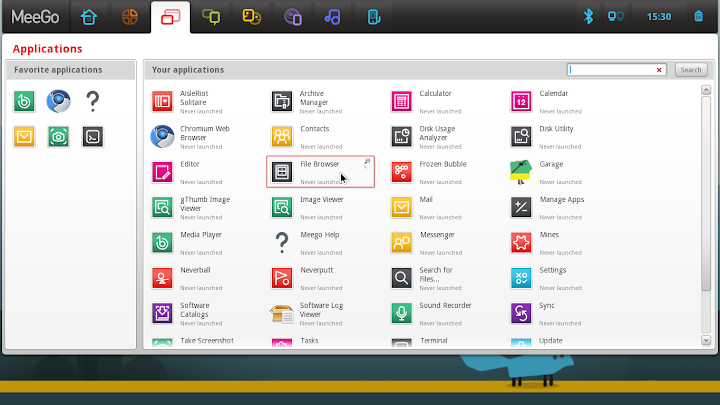
  • Easy to use applications for email, calendar, and media player.
  • Power and performance optimization.
  • Languages: Japanese, Korean, Chinese Simplified, Chinese Traditional, Swedish, Polish, Finnish, Italian, Brazilian Portuguese, French, German, Spanish, Russian, Dutch, English, and British English.

MeeGo v1.2 Core Software Platform Features include:

  • Complete MeeGo Compliance packages for ensured compatibility.
  • GCC 4.5.1 toolchain with great support for the Intel Atom* micro-architecture and the Intel SSSE3 instruction set, as well as with great ARM support. It has Linaro 2010.09 patches adding hard floating-point for all known ARMV7-A chipsets including Tegra2 and Marvell chips with sub-architectures of Thumb2/Neon.
  • Linux kernel 2.6.37, with support for Intel Atom processor Z6xx series family and Nokia N900 with working power-management and numerous bug fixes.
  • X.org Server 1.9.0 and Mesa 7.9.1, for improved 2D and 3D graphics performance.
  • Qt 4.7.2 and Qt-mobility 1.2, providing a rich set of APIs for creating compelling applications that include location, sensors, contacts, and messaging. The new version of Qt enables GLLE-only builds and adds multi-point touch support through XInput2 API and many performance optimizations. On the ARM side, it conducts ARMv7 optimizations and runtime detection for enabling NEON optimization. For Qt-mobility 1.2, it adds a new connectivity subpackage and enhanced camera support, it also adds libva and GLESv2 shader support.
  • New Connman connection manager with a lot of bug fixes and new features like tethering, openvpn, setting proxy auto-configuration, IPV6 DNS connections and regulatory domain settings, and more.
  • New Ofono telephony stack with extensive bug-fixes and features like support for many new modems, improved SSN and voicecall handling, multiple AT channels, call forwarding and SIM refresh, emergency calls without SIM/PIN, and more.
  • Pulseaudio 0.9.22 with all required support for resource policy management, audio management, and phone calls. Supports bluetooth A2DP for mp3 direct streaming.
  • Gstreamer 0.10.32.
  • New resource policy management framework with working audio route in both IA and N900 platforms.
  • PackageKit 0.6.13: supports more proxies, including http_proxy, https_proxy, socks_proxy and no_proxy; supports cancel operations while downloading/installing packages. Supports downloading raw RPM packages directly.

The MeeGo v1.2 for IVI release includes:

  • A sample IVI Homescreen and speech recognition enabled application launch menu built with QML, and a collection of commonly used QML based applications. The application launch menu can be controlled by speech, or by a Contour ShuttleXpress scroll wheel, touch screen, or mouse and is designed to reflect the scroll wheel usage, with the ability to spin through the menu options and make selections or go back, by pressing two buttons or by tapping the touch screen.
  • TTS (Text-to-speech) is supported using Festival Speech Synthesis. TTS is enabled by default in the Homescreen menu navigation.
  • Speech recognition for the application launch menu uses the integrated PocketSphinx 0.6.1 package, which is a lightweight, cross-platform engine built using the Sphinx speech recognition toolkit. PocketSphinx provides a GStreamer plugin, allowing the application to create a pipeline to parse the human voice, based on words defined in the dictionary. Voice commands for the homescreen application launch menu have been pre-defined for navigating the scroll menus. Additional voice commands may be added by application developers.
  • QT-Mobility (QML) integration and QML based sample applications which include, but are not limited to: video player, song player, photo viewer, settings management, and MeeGo Touch Framework based sample applications provided along with MeeGo 1.1 IVI. An updated version of the MeeGo 1.1 IVI handsfree dialer is also included.
  • MeeGo Core OS: The MeeGo In-Vehicle Infotainment image includes the MeeGo 1.2 Core OS.

The MeeGo Netbook User Experience includes:

  • Visually rich netbook user experience, built on the latest open source technologies.
  • Touch support integrated on netbooks/nettops.
  • Instant access to your calendar, tasks, appointments, recently used files, and real-time social networking updates through the home screen.
  • Aggregation of your social networking content. This allows you to see your social networking activities on one screen, easily interact with your friends, and update your status and site information.
  • For a fast and rich internet experience: MeeGo Netbook user experience integrates Google Chrome or, if you prefer a fully open source browser solution, Google Chromium is also provided.
  • Easy to use applications for email, calendar, and media player.
  • Power and performance optimized.
  • Languages: Japanese, Korean, Chinese Simplified, Chinese Traditional, Swedish, Polish, Finnish, Italian, Brazilian Portuguese, French, German, Spanish, Russian, Dutch, English, and British English.
  • MeeGo Core OS: The MeeGo Netbook image includes the MeeGo 1.2 Core OS.

Downloads:
  1. Download MeeGo v1.2 Core Software Platform : Here
  2. Download MeeGo v1.2 for Netbooks : Here
  3. Download MeeGo v1.2 for In-Vehicle Infotainment (IVI) : Here
  4. Download MeeGo v1.2 for Netbooks (Google Chrome Browser) : Here
  5. Download MeeGo SDK for Linux : Here
  6. Download MeeGo SDK for Windows : Here
Updates :
  1. Download MeeGo v1.1.4 Core Update : Here
  2. Download MeeGo v1.1.4 Netbook Update : Here
  3. Download MeeGo v1.1.3 Core Update : Here
  4. Download MeeGo v1.1.3 Netbook Update : Here
  5. Download MeeGo 1.1.2 SDK Update: Here

ScreenShots :


Keywords

armv7, Meego 1.2 arm7, Download MeeGo 1.1.2 SDK Update, download MeeGo 1.2, download MeeGo 1.2 Core OS, download MeeGo Core, Download MeeGo SDK for Linux, Download MeeGo SDK for Windows, Download MeeGo v1.1.3 Core Update, Download MeeGo v1.1.3 Netbook Update, Download MeeGo v1.1.4 Core Update, Download MeeGo v1.1.4 Netbook Update, Download MeeGo v1.2 Core Software Platform, Download MeeGo v1.2 for Chromebook, Download MeeGo v1.2 for In-Vehicle Infotainment, Download MeeGo v1.2 for Netbooks, Download MeeGo v1.2 for Netbooks (Google Chrome Browser), in car entertainment, In-carEntertainment, intel, intel atom, intel meego, IntelMeego, linux, MeeGo, Meego 1.2, MeeGo 1.2 Core OS, MeeGo 1.2 gets official release, MeeGo 1.2 Released, MeeGo Core, MeeGo Linux, meego tablet, MeeGo updated to version 1.2, Meego1.2, MeegoTablet, mobile linux, netbook, nokia, nokia n9, open source, operating systems, OS, Qt, Release, Tablet, tablet pcs, update

armv7

Download MeeGo 1.1.2 SDK Update

download MeeGo 1.2


download MeeGo 1.2 Core OS


download MeeGo Core


Download MeeGo SDK for Linux


Download MeeGo SDK for Windows


Download MeeGo v1.1.3 Core Update


Download MeeGo v1.1.3 Netbook Update


Download MeeGo v1.1.4 Core Update


Download MeeGo v1.1.4 Netbook Update


Download MeeGo v1.2 Core Software Platform


Download MeeGo v1.2 for Chromebook


Download MeeGo v1.2 for In-Vehicle Infotainment


Download MeeGo v1.2 for Netbooks


Download MeeGo v1.2 for Netbooks (Google Chrome Browser)


in car entertainment


In-carEntertainment


intel


intel atom


intel meego


IntelMeego


linux


MeeGo


Meego 1.2


MeeGo 1.2 Core OS


MeeGo 1.2 gets official release


MeeGo 1.2 Released


MeeGo Core


MeeGo Linux


meego tablet


MeeGo updated to version 1.2


Meego1.2


MeegoTablet


mobile linux


netbook


nokia


nokia n9


open source


operating systems


OS


Qt


Release


Tablet


tablet pcs


Download miggo software


miggo core download


download miggo os 1.2


miggo update


mego download


meggo download


migo download

MeeGo os review


You May Like This:

MeeGo | Download all New and Updated Version of MeeGo OS , MeeGo Core, MeeGo SDK, MeeGo Netbook